

How Forms Work
Kleap forms automatically:- Save submissions - Every submission stored in your dashboard
- Track metadata - IP address, timestamp, user agent
- Support multiple forms - Each form has a unique ID
- Export data - Download as CSV anytime
Forms work in both the editor preview and on your published site. All data is automatically backed up.
Viewing Form Submissions
Access all form submissions from your dashboard:- Open your project
- Click Settings in the builder toolbar
- Choose Project settings
- Open Data Management under Data
- Browse submissions with dates and user information
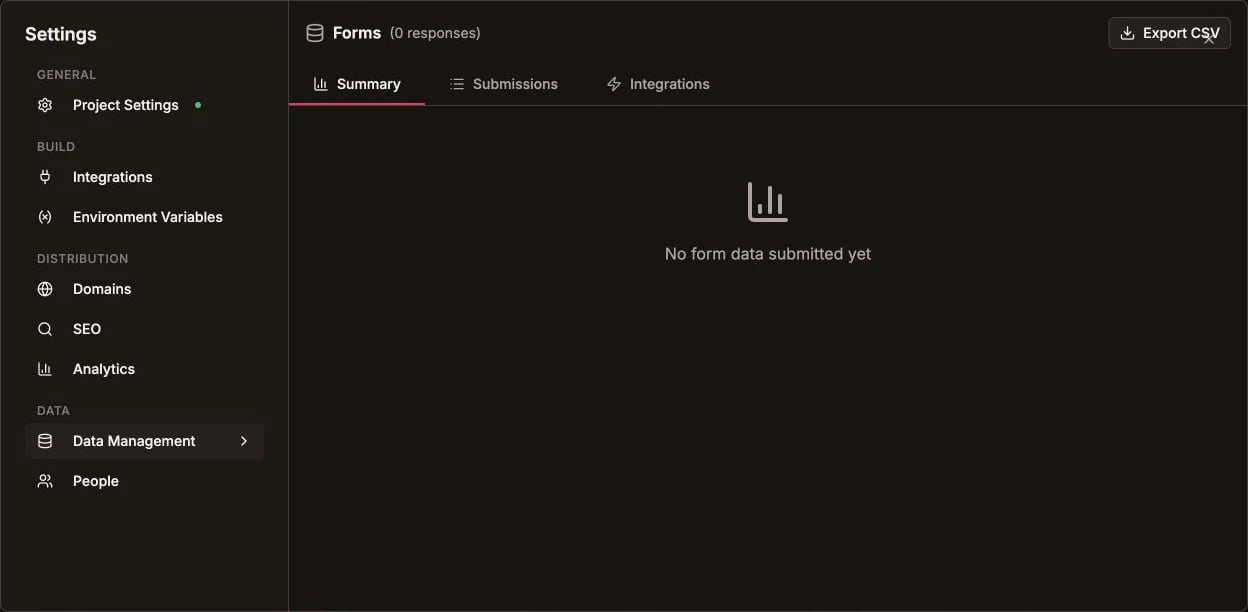
Form submissions are managed from Settings > Data Management
Dashboard Tabs
Email Notifications
Get notified when someone submits your form:- Open your project
- Open Settings > Project settings > Data Management
- Open the form’s integrations
- Check “Get email notifications”
- Enter your email address
- Click “Save Integration Settings”
Notification Features
- Instant alerts - Receive emails within seconds
- Full submission data - All form fields included
- Multiple recipients - Add unlimited email addresses
- Free on all plans - No Pro plan required
Form Integrations
Email Notifications (Free)
Send notifications to yourself or your team:Respondent Notifications (Pro)
Automatically thank form submitters:- Custom email subject
- Custom email body
- Sent to form respondent’s email
- Professional auto-responder
Upgrade to Pro
Unlock respondent notifications and advanced features
Webhooks (Pro)
Send form data to your own API:- Real-time HTTP POST requests
- Custom endpoint URL
- Full submission payload
- Test webhook functionality
- View delivery logs
Exporting Data
Download all form submissions as CSV:- Go to the Data tab
- Click Export CSV (top right)
- Open in Excel, Google Sheets, or any spreadsheet software
Open Data Management before selecting a form and exporting its submissions
Export Features
- All form fields included
- Timestamps and metadata
- Filter by form or date range
- Compatible with all spreadsheet apps
Multiple Forms
Manage multiple forms on one site:- Each form has a unique
formId - Submissions grouped by form
- Separate analytics per form
- Individual export for each form
Form List View
When you have multiple forms:- Dashboard shows all forms
- Click a form to view its submissions
- See submission count per form
- Track form performance
Text Editing
Edit text on your site without using credits:- Click Edit in the builder toolbar
- Click any text block in the preview
- Edit directly in the text editor
- Click outside to save
- Changes apply immediately

Enable Edit elements before selecting text in the preview
Text editing is free and doesn’t consume AI credits!
Form Setup (Technical)
Forms use theKleapForm component:
Supported Field Types
Troubleshooting
Not seeing form submissions?
Not seeing form submissions?
Forms work automatically. Check these:
- Go to Data tab in your dashboard
- Verify you’re in the correct project
- Email notifications need to be enabled separately
- All submissions ARE saved even without emails
Not receiving email notifications?
Not receiving email notifications?
Check these settings:
- Data tab → Integrations → “Get email notifications” must be checked
- Email address must be entered correctly
- Check your spam folder
- Test with a form submission
How to change notification email?
How to change notification email?
- Data tab → Integrations tab
- Update the email address field
- Click “Save Integration Settings”
- Changes apply immediately
Can I delete form submissions?
Can I delete form submissions?
Yes! Each submission has a delete button in the Submissions tab.
How many forms can I have?
How many forms can I have?
Unlimited! Create as many forms as you need. Each form is tracked separately.
Privacy & Security
Form submissions are secure:- SSL encryption - All data transmitted securely
- Data privacy - Only you can access submissions
- GDPR compliant - User data handled responsibly
- No third-party sharing - Your data stays with Kleap
Common Use Cases
Contact Forms
Collect inquiries from visitors:Newsletter Signup
Build your email list:Lead Generation
Qualify potential customers:Best Practices
Keep forms short
Keep forms short
Ask only essential questions. Every field reduces completion rate by ~10%.
Enable email notifications
Enable email notifications
Respond to inquiries quickly by enabling instant email alerts.
Export data regularly
Export data regularly
Backup form submissions weekly to avoid data loss.
Test your forms
Test your forms
Submit a test entry to verify email notifications work correctly.
Use clear field labels
Use clear field labels
Make it obvious what information you’re requesting.
Add success messages
Add success messages
Confirm submission with a friendly thank you message.
FAQs
Q: Do forms work on published sites? A: Yes! Forms work identically in the editor preview and on your published site. Q: Can I connect forms to my own database? A: Use webhooks (Pro plan) to send form data to your API in real-time. Q: How many submissions can I receive? A: Unlimited! All plans support unlimited form submissions. Q: Can I have multiple forms on one site? A: Yes! Each form has a uniqueformId and submissions are grouped by form.
Q: Can I customize form styling?
A: Yes! Forms use Tailwind CSS with React islands. Ask the AI to customize appearance.
Q: Is there a size limit for submissions?
A: Text fields support up to 10,000 characters. File uploads not currently supported.
Need Help?
Contact our support team for assistance with forms