

How It Works
- Click Edit in the builder toolbar
- Click on any element in the preview
- The element gets highlighted with a blue border
- The AI knows what you selected
- Ask for changes - “Make this bigger”, “Change the color”
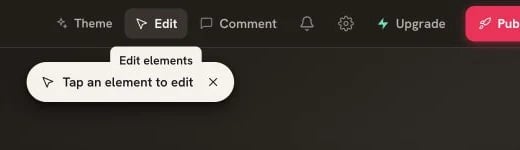
Click Edit, then tap an element in the preview
Selecting Elements
Single Element
Click directly on the element you want to modify:- Text blocks
- Buttons
- Images
- Containers
- Forms
- Navigation items
Visual Feedback
When selected:- Blue border shows the selected element
- Element info appears (tag, class)
- The AI references this element in responses
Making Changes
Once selected, describe your change:Styling
Content
Layout
Functionality
Examples
- Edit Section
- Modify Card
Tips for Better Selection
Be precise with clicks
Be precise with clicks
Click directly on the element you want. If you hit a parent container, try clicking closer to the content.
Use descriptions when selection is tricky
Use descriptions when selection is tricky
If clicking doesn’t select the right element:
Reference multiple elements
Reference multiple elements
You can describe multiple elements:
Limitations
- Some deeply nested elements may be harder to select
- Dynamic elements (modals, dropdowns) need to be visible to select
- For complex selections, describe the element in chat
Without Selection
You can still make changes without selection by being descriptive:Learn Effective Prompting
Get better at describing changes