

Team Features
- Shared apps - Multiple people can work on the same app
- Role management - Control who can do what
- App transfer - Move apps between accounts
- Team billing - Centralized credit management
Inviting Team Members
Add to an App
- Open your app
- Go to Settings > Project settings > People
- Click Invite Member
- Enter their email address
- Select their role
- Send invitation
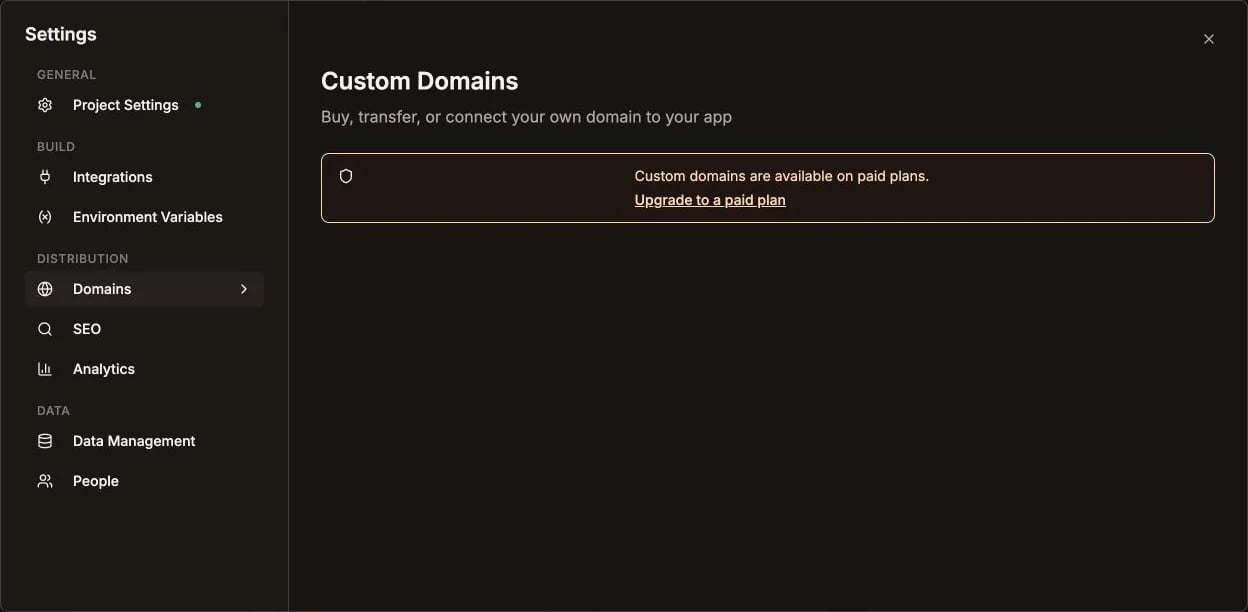
People is available in the Data section of Project settings
Invitation Flow
- Team member receives email
- They click the invite link
- Sign up or log in to Kleap
- Access is granted automatically
Team members need their own Kleap account to collaborate.
Roles & Permissions
Role Details
Viewer
Viewer
Can view the app, code, and preview. Cannot make changes.
Editor
Editor
Can edit the app using AI chat and code editor, and deploy to production. Cannot change app settings.
Owner
Owner
Complete control including billing, settings, deletion, and transfer.
Managing Team Members
Change Role
- Go to Settings > Project settings > People
- Find the team member
- Click their role dropdown
- Select new role
Remove Member
- Go to Settings > Project settings > People
- Find the team member
- Click Remove
- Confirm removal
App Transfer
Transfer app ownership to another user.Transfer to Team Member
- Go to Settings > Transfer
- Select the recipient (must be a team member)
- Confirm transfer
- Recipient accepts the transfer
Transfer to Any User
- Go to Settings > Transfer
- Enter recipient’s email
- They receive a transfer request
- They accept and become the new owner
After transfer, you no longer have access to the app. The new owner can invite you back if needed.
Working Together
Best Practices
Communicate changes
Let team members know when you’re making big changes.
Use version history
Check history to see what others have changed.
Assign clear roles
Give appropriate permissions for each person’s job.
Review before deploy
Have someone review changes before publishing.
Avoiding Conflicts
Currently, Kleap doesn’t have real-time collaboration (like Google Docs). To avoid conflicts:- Communicate when you’re working on the app
- Work on different parts at the same time
- Refresh before starting to get latest changes
- Use version history to recover if needed
Team Billing
Credit Usage
- Each edit uses credits from the app owner’s account
- Team members don’t need their own credits to edit
- Owner can view credit usage per team member
Pro Team Features
On Pro and Enterprise plans:- More team members allowed
- Priority support for all members
Limits
Enterprise Features
For larger teams, contact us about:- SSO - Single sign-on integration
- Audit logs - Track all team activity
- Custom roles - Define your own permissions
- Organization - Manage multiple teams
Need more team features?
Contact us about Enterprise plans.