

How It Works
- Describe your request in the chat input
- AI processes your request and generates code
- Preview updates in real-time
- Iterate by sending follow-up messages
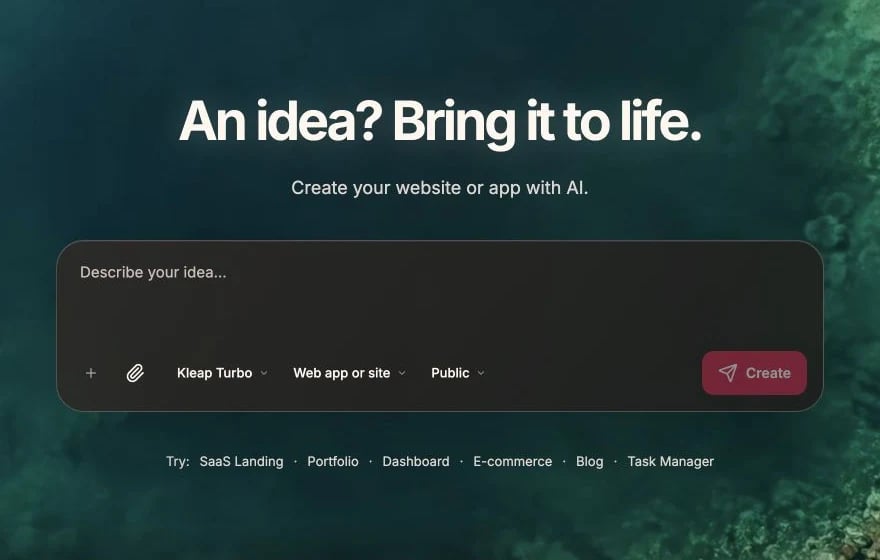
Start from the English creation screen, then continue refining in chat
Writing Effective Prompts
Be Specific
- Good
- Too Vague
Include Context
Tell the AI where and how:Reference Existing Elements
Example Prompts
Creating Components
Styling Changes
Adding Functionality
Fixing Issues
Chat Features
Message History
Your conversation is saved automatically. Scroll up to see previous messages and the AI’s responses.Regenerate Response
If you’re not happy with a response, you can ask the AI to try again:Credit Usage
Each message consumes credits based on complexity:
Estimates — actual usage depends on the request. Image generation and text editing are free.
You can see your remaining credits in the top navigation bar.
Tips for Better Results
Break complex requests into steps
Break complex requests into steps
Instead of asking for an entire app at once, build incrementally:
- “Create the homepage layout”
- “Add a navigation header”
- “Create the hero section”
- “Add the features grid”
Reference design systems
Reference design systems
Mention styles you like:
- “Use a clean, minimal design like Linear”
- “Make it colorful and playful like Notion”
- “Professional and corporate like Stripe”
Provide examples
Provide examples
Share references:
- “Similar to how Airbnb shows listings”
- “Like a Trello board layout”
Iterate in small steps
Iterate in small steps
Make one change at a time for precise control:
- “Increase the heading size”
- “Add more spacing between sections”
- “Change the button color to green”
Common Issues
Learn Prompt Engineering
Master the art of prompting for better results