

Why GitHub?
- Version control - Track every change with Git
- Backup - Code stored safely in the cloud
- Collaboration - Work with developers
- Two-way sync - Changes flow both directions automatically
- Portability - Own and take your Astro source code anywhere
GitHub is for backup, code ownership, and two-way sync — it is not how your
site goes live. Kleap deploys your app automatically to Kleap’s global edge at
{your-app}.kleap.io whenever you publish. Pushing to GitHub does not deploy
anything.Connecting GitHub
One-Time Setup
- Go to Settings > Project settings > Integrations
- Choose GitHub and click Connect
- Authorize Kleap in the popup
- Select repository access
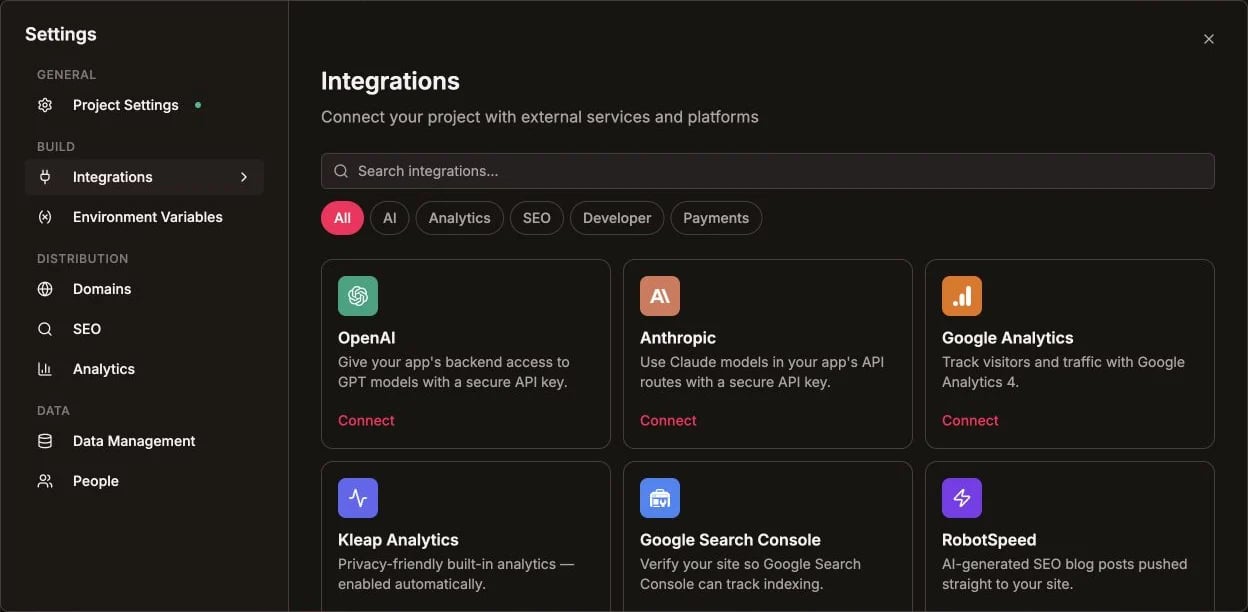
Open the Integrations catalog to connect GitHub
Permissions Requested
- Read your profile
- Create repositories
- Push to repositories
- Read repository contents
We only access repositories you explicitly connect. Your other repos remain private.
Pushing Code to GitHub
Create New Repository
- Open your app
- Go to Settings > Project settings > Integrations > GitHub
- Click Create Repository
- Enter repository name
- Choose public or private
- Click Create & Push
Connect Existing Repository
- Open your app
- Go to Settings > Project settings > Integrations > GitHub
- Click Connect Repository
- Select from your repositories
- Confirm connection
Syncing Changes
Sync works in both directions: push to GitHub and Kleap syncs the changes in, and changes made in Kleap are pushed back to GitHub. A last-commit-sha guard prevents sync loops between the two sides.Push to GitHub
After making changes in Kleap:- Go to Settings > Project settings > Integrations > GitHub
- Click Push Changes
- Enter a commit message (optional)
- Changes are pushed to your repo
Auto-Push
Enable automatic syncing:- Go to Settings > Project settings > Integrations > GitHub
- Toggle Auto-push on publish
- Every publish also pushes to GitHub
Repository Structure
Your GitHub repo contains the full Astro project — an Astro 5 static site with Tailwind v4, React 19 islands, and TypeScript:Working with Developers
Share with a Developer
- Push your code to GitHub
- Share the repository URL
- Developer clones and runs locally:
Merge Developer Changes
When a developer pushes changes:- Go to Settings > Project settings > Integrations > GitHub
- Click Pull Changes
- Changes are synced to Kleap
Manual merges may be needed if both sides have changes. Advanced Git knowledge helps here.
Branches
Default Branch
Kleap works with your default branch (usuallymain or master).
Feature Branches
For experimental changes:- Developer creates branch locally
- Makes changes and commits
- Creates pull request
- Merge to main when ready
- Pull changes into Kleap
GitHub Actions
Your repository can use GitHub Actions for:- Automated testing - Run tests on push
- Code quality - Lint and format checks
- Build checks - Verify the Astro build passes
GitHub Actions run inside GitHub only. They don’t publish your Kleap site —
deployment stays automatic through Kleap (to Kleap’s global edge at
{your-app}.kleap.io).Example Workflow
Private vs Public
Disconnecting GitHub
To disconnect:- Go to Settings > Project settings > Integrations > GitHub
- Click Disconnect
Troubleshooting
Push failed
Push failed
- Check your GitHub connection is active
- Ensure you have write access to the repo
- Try disconnecting and reconnecting
Merge conflicts
Merge conflicts
- Pull changes before pushing
- Resolve conflicts manually if needed
- Consider using a developer for complex merges
Repository not showing
Repository not showing
- Ensure you granted access during OAuth
- Go to GitHub settings and update Kleap’s permissions
- Try reconnecting your account
Large files rejected
Large files rejected
- GitHub has a 100MB file limit
- Use Git LFS for large assets
- Consider using a CDN for large images/videos
Best Practices
Push regularly
Don’t wait too long between pushes. Regular backups are safer.
Write good commits
Describe what changed in commit messages for future reference.
Use private repos
Keep client work and proprietary code in private repositories.
Review before merge
Always review developer changes before pulling into Kleap.
Version History
Use Kleap’s built-in version history alongside GitHub