

Step 1: Sign Up
Go to kleap.co and create your account:- Click Get Started
- Sign in with Google, an email magic link, or a 6-digit email code
- You’ll receive free credits to start building
No credit card required. Start building immediately with your free credits.
Step 2: Describe Your Site
Tell Kleap what you want to build in the chat box: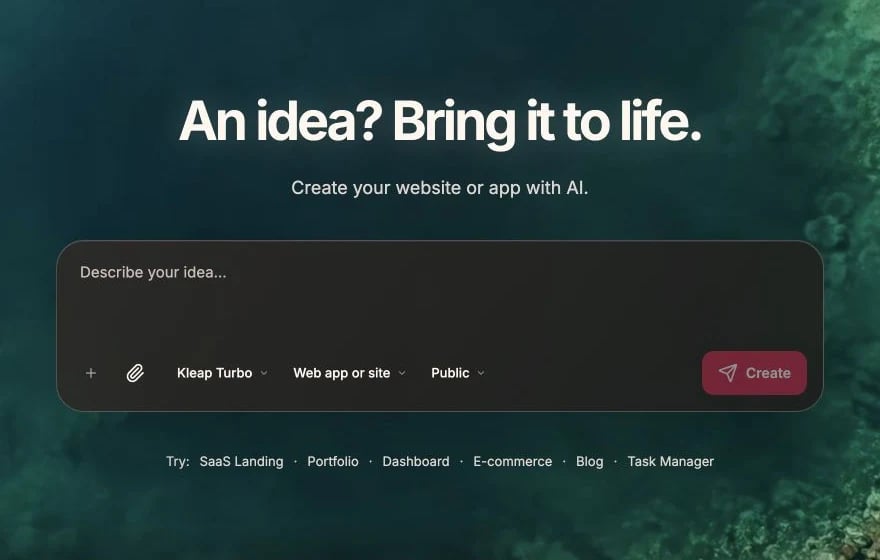
Describe your idea, choose a format, then click Create
Step 3: Edit with AI
Once your site is created, continue the conversation to refine it:
Use the English builder toolbar to refresh, open, edit, comment, configure, or publish
Step 4: Preview Your Site
Your site shows in a live preview on the right side of the screen:- Real-time updates as you make changes
- Mobile responsive - resize to test different screens
- Interactive - click buttons, fill forms, test functionality
Step 5: Publish Your Site
Your draft stays private until you publish it:- Click the Publish button in the top bar
- Review the website address in the Publish panel
- Click Publish in the panel and wait for the build to complete
- Your site is live at
your-app.kleap.io
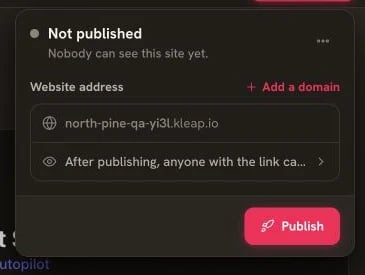
The Publish panel shows the website address and final Publish action
Step 6: Connect a Custom Domain (Optional)
Want your own domain likemyapp.com?
- Go to Settings > Domains
- Click Add Domain
- Enter your domain name
- Follow the DNS setup instructions
- SSL is automatically configured
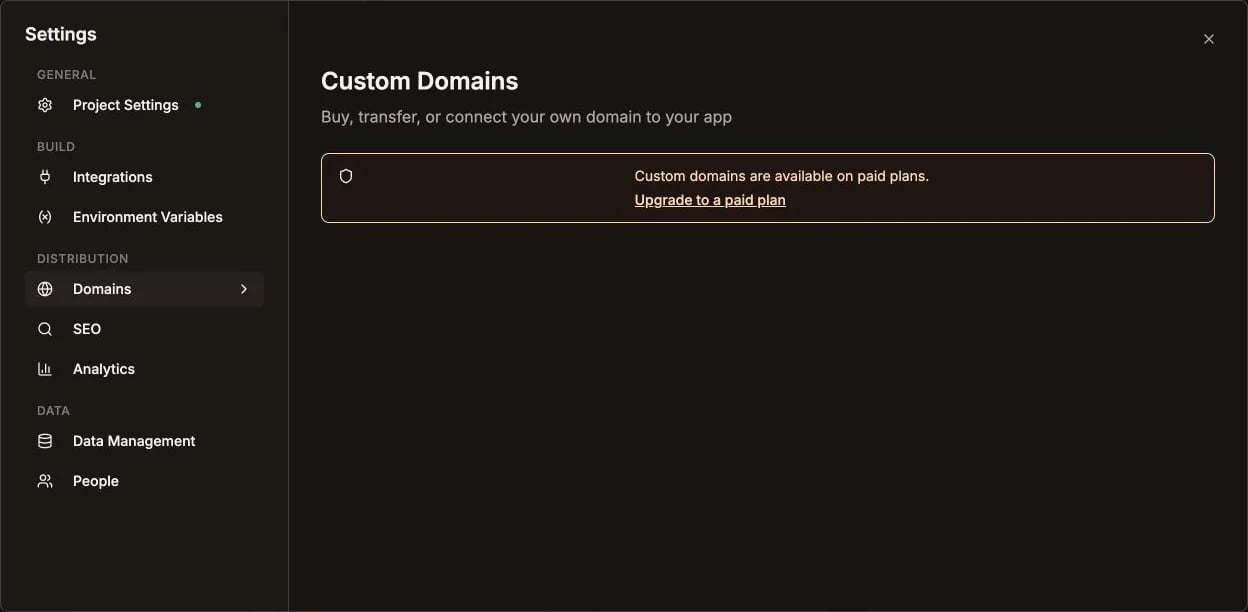
Open Settings, then choose Domains under Distribution
Need a domain?
Buy a domain right inside Kleap, or bring one from any registrar. Root domains connect with an A record (never a CNAME); if your DNS is on Cloudflare, set the record to DNS only.
What’s Next?
Learn the AI Chat
Master prompting for better results
What You Can Build
See the kinds of sites Kleap creates
Add a database
Turn on Kleap Database — a managed database and user accounts, built in
Push to GitHub
Version control your code